

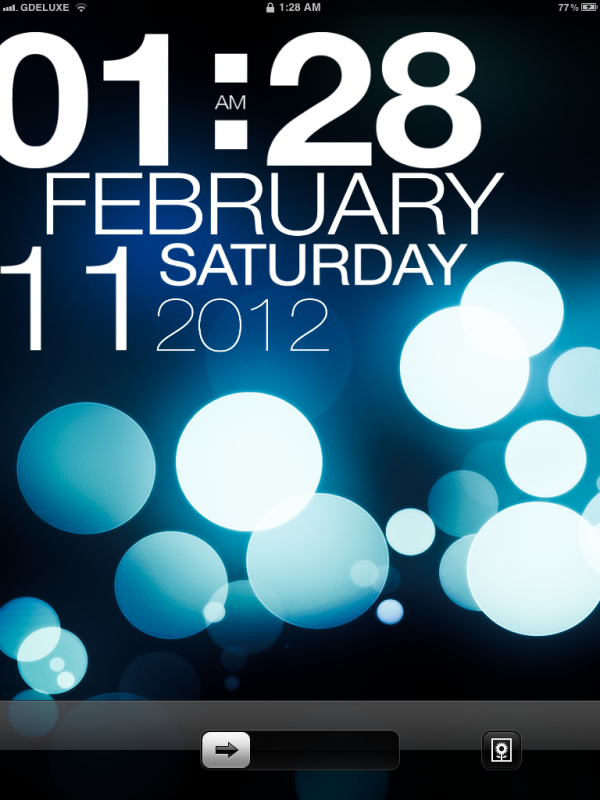
Do you have cool iPad 2 or iPad 1? iPad has standard LOCKSCREEN. But we want exclusive background and LOCKSCREEN. This complete guide: “How to make exclusive beautiful Locksreen on your iPad 2″
Original:
0) Jailbreak and install Cydia
1) Install “WinterBoard”
2) Install “Lockscreen Clock Hide”
3) Remove “Slide to Unlock”
4) Download TYPOPAD from GD. ()
You will need to first jailbreak, then install WinterBoard, and then add additional applications in order to install this theme. I will guide you through the process.
Part 0: Jailbreak and Install Cydia
-Guide about -> HOW TO JAILBREAK IPAD 3, 2, 1
Part 1: Install Winterboard
This is the second part. You will now be installing WinterBoard. WinterBoard is an application that allows you to customize the design of your iPhone and iPod Touch. It’s created by Saurik.

1. Tap the Cydia icon to launch Cydia.
2. Tap the Search icon on the bottom right and type in WinterBoard in the top search box.
3. Once you see WinterBoard in your search results, tap it.

4. Once you get to the WinterBoard package, tap the Install button on the top right.

5. Tap the confirm button on the top right to confirm your install.

6. Once WinterBoard is installed, you’ll need to tap the “Reboot Device” button to reboot your device.

7. Congratulations, WinterBoard is now installed on your device. You should see the following icon labelled WinterBoard on your device once it restarts.
Part 2: How to install “Lockscreen Clock Hide”
Lockscreen Clock Hide is a mod that removes the time and date from your lockscreen leaving you with just a blank lockscreen. What is cool, is that it replaces the little lock icon that is normally on your status bar when your iPhone or iPod Touch is locked with the time! So, you don’t actually completely lose the time…it just gets moved to your status bar!
Tap the Cydia icon to launch Cydia.
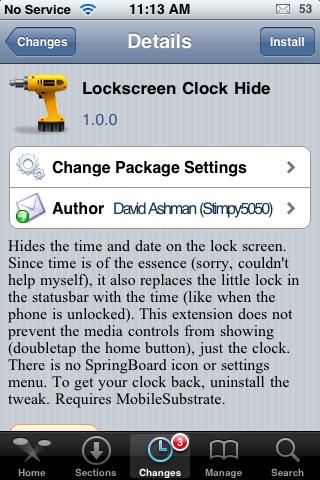
Tap on the Install button and then you will get the following screen with the app data size and amount of the data which would be downloaded.
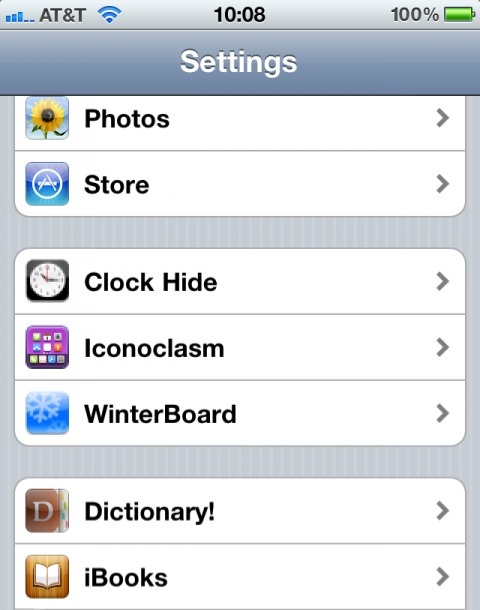
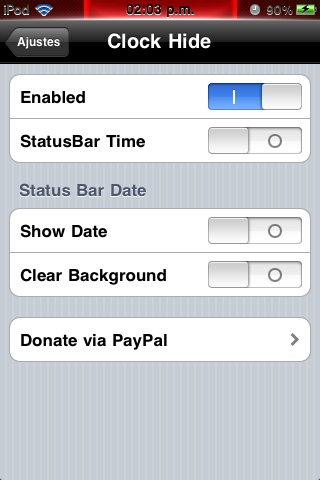
Once the device is completely rebooted you will have to tap on the Settings Icon and then tap on “LockScreen Clock Hide” option
Part 3: How to remove “Slide to Unlock”

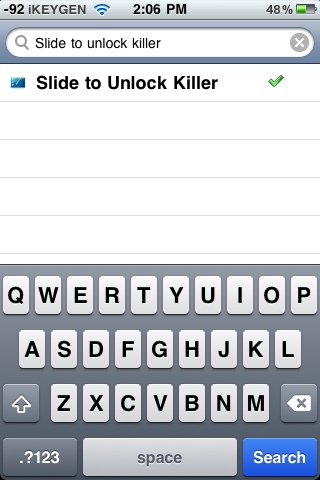
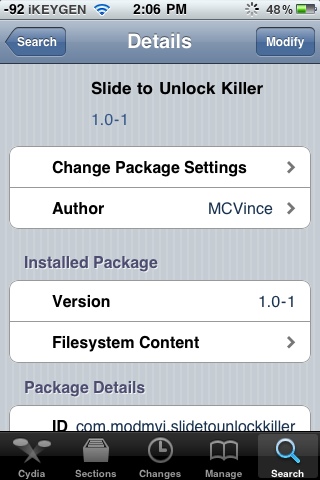
Install this App.
Part 4: Download and install TypoPad
1. Open up your SSH client (i-FunBox on Windows or CyberDuck on Mac OS X)
2. Navigate to ../Root/private/var/stash/Themes/
3. Copy the theme folder into that location
4. Go to “Settings” + “WinterBoard” + “Themes” and select “TypoPad”, “Slide to Unlock Killer” and go back and click “Respring”
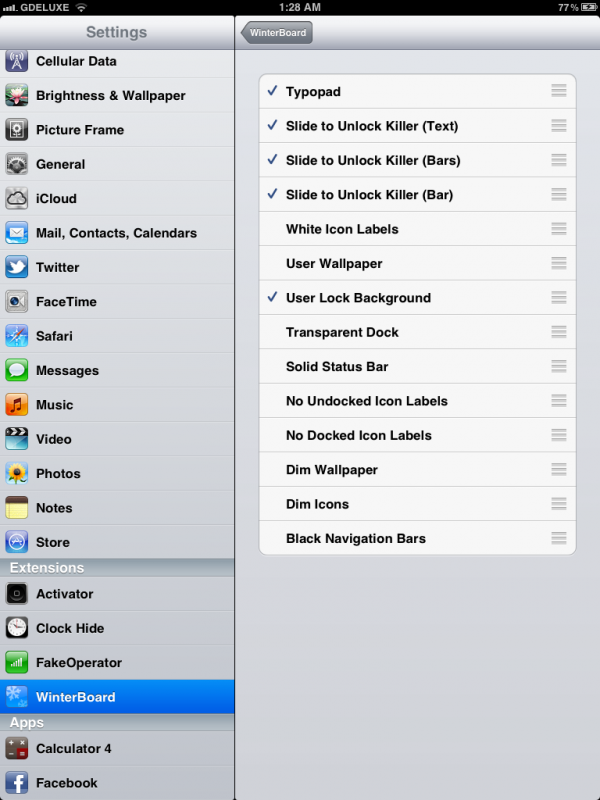
Done.
P.S.
4 HOUR TIME
1. Open “functions.js” and go to the second line:
“AM_PM = true;”
Change it to false.
2. Respring and done!
CHANGE TO CUSTOM BACKGROUND (iOS5)
1. Choose your background like you normally would
(In the camera or settings app under the “wallpaper setting”)
2. Respring and done!
BUG FIXES AND ERRORS
1. If your “Slide to Unlock Killer” is still there, go into the theme folder and navigate to:
Typophone 4\Bundles\com.apple.springboard\en.lproj\
There is a folder, and inside it is another springboard.strings file. Replace the one in
\en.lproj\ with this file.
Done!
We Recommend:
![iPHOTO 5.0.1 - HOW TO INSTALL iPHOTO on iOS 5.0.1 [CYDIA TWEAK]](wp-content/uploads/2012/03/iPad-3-design-150x150.jpg)


Related Posts:
IAD 2, iPad, IPAD 2 COOL, iPad 2 design, IPAD 2 LOCKSREEN, IPAD 2 TWEAKS, IPAD 2 TYPOPAD, IPAD 2 WINTERBOARD
Recent Posts:
- iPhone 5s and iPad Air recognized as the best products of the year.
- You Can See New Design Of Cydia iOS 7.
- iOS 7 Jailbreak FAQ - iPad Air, iPad Mini 2 and Others iDevices.
- iOS 7.0.5 Download Coming Soon. iOS 7.1 Beta 3 Also. Public release in March.
- Cydia Tweaks iOS 7. Complete Compatibility List.
- How To Enable in IOS 7 Hidden Menu To Fine Tune.
- iPhone 6 will be released in May 2014.
- iPad Pro Price In Usa Starting At $1099. Release Date in 2014.
- Thieves crashed car through an Apple Store window in Berlin.
- Evad3rs - Letter To The Jailbreak iOS 7 Community


